→ Remove Duplicate Pages
September 11, 2026
Last updated on September 25, 2026
Remove Duplicate Pages scans a section, a notebook, or several notebooks for pages that are the same - or close to the same - and lets you review them side by side before deciding what to delete. It finds two different kinds of matches: pages whose content is byte-for-byte identical, and pages that are merely similar, scored the same way Compare Hierarchy scores content, with the same rubric popup to explain a score on demand.
|
This page covers:
- Opening and Configuration
- How similarity is scored
- Reading the results window
- The similarity chip
- Deleting pages
- Exact duplicates vs. scored matches
- Tips
Opening and Configuration
On the OneMore ribbon tab, open the More group, then Clean, and choose Remove Duplicate Pages. Before OneMore scans anything, it asks what to look for and where to look.
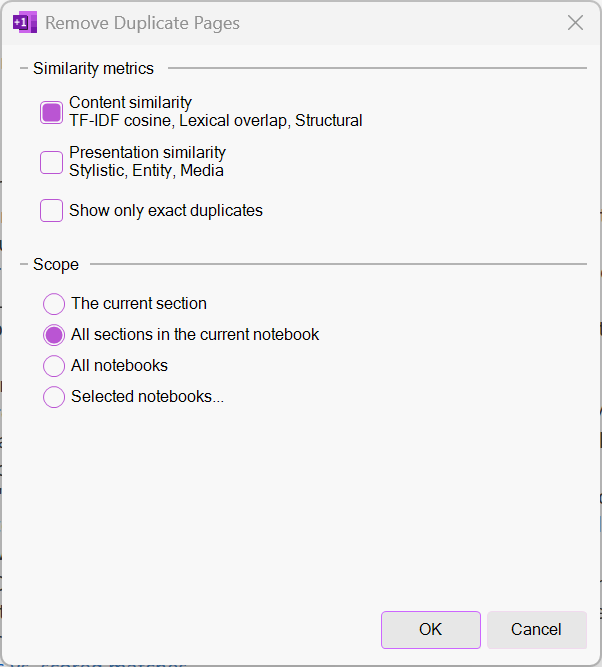
Similarity metrics groups the five scoring rubrics (the same ones Compare Hierarchy uses) into two checkboxes:
- Content similarity — TF-IDF cosine, Lexical overlap, Structural. Checked by default. Compares vocabulary, shared words, and headings/ paragraph structure - the actual substance of the text.
- Presentation similarity — Stylistic, Entity, Media. Unchecked by default. Compares writing style, shared proper names/technical terms, and embedded images. The Media comparison in particular means OneMore has to read each page's full binary content instead of just its text, so checking this box makes the scan noticeably slower on notebooks with a lot of images.
Unchecking one of these two boxes doesn't just drop those rubrics' scores - the weights of whatever's still checked are renormalized so they always add back up to 100%. See How similarity is scored for what each rubric actually measures.
Show only exact duplicates switches the scan into a faster, narrower mode:
- Unchecked (the default), OneMore also looks for similar (not just identical) pages, using whichever metrics are checked above.
- Checked, it skips that scoring pass entirely and only reports pages whose extracted text is byte-for-byte identical - much faster, since it never has to run the rubric math, but it can find fewer pages than the default view for reasons explained in Exact duplicates vs. scored matches.
Scope is the same scope selector used elsewhere in OneMore: the current section, all sections in the current notebook, all notebooks, or a specific set of notebooks you pick yourself.
Comparisons only ever look at page content - titles are never considered, regardless of what's checked above.
How similarity is scored
Every rubric produces a 0-100% score for a pair of pages; the overall score is a weighted average of whichever rubrics are enabled, entirely local - no AI model or network call is involved:
|
Rubric |
Base weight |
Group |
What it measures |
|
TF-IDF cosine |
45% |
Content |
Term Frequency–Inverse Document Frequency - How much the distinctively-weighted vocabulary overlaps across the pages |
|
Lexical overlap |
20% |
Content |
How many unique words the two pages share |
|
Structural similarity |
15% |
Content |
Matching headings and comparable paragraph counts |
|
Media similarity |
15% |
Presentation |
How many embedded images the two pages have in common |
|
Stylistic similarity |
10% |
Presentation |
Comparable sentence length and writing style |
|
Entity similarity |
10% |
Presentation |
Shared proper names and technical terms |
If you leave both metric checkboxes at their defaults (Content on, Presentation off), only the first three rows run, renormalized to add up to 100% on their own. Checking Presentation similarity adds the other three, Media included.
Reading the results window
Once the scan finishes, a results window opens showing one card per group of matching pages.
Each card's title tells you what kind of group it is: "Duplicates of ‹title›" for a group made entirely of exact matches, or "Pages similar to ‹title›" if any member of the group was found through scoring rather than an exact match.
Within a card, pages are listed newest first. The newest page is treated as the one you'd keep, so it never shows a similarity chip next to it - there's nothing useful to compare it to itself. Every older page in the group shows a chip describing how it relates to that newest page. Each row also shows the page's full hierarchy path (notebook/section/page, plain text, not clickable) and its last-modified date and time, in your local time zone.
If a group has two or more pages, its header shows a Keep Newest button - see Deleting pages.
A separate Empty Pages bucket, with no similarity chips at all, lists any pages OneMore found with no text content. You can delete individual empty pages by clicking the associated delete button.
The similarity chip
The colored pill next to each older page is the fastest way to judge a match at a glance:
|
Chip |
Meaning |
|
Green 100% · identical (fixed, no border) |
Hash-proven identical. OneMore compared the pages' extracted content directly - no score, nothing to explain. |
|
Green NN% similar |
A scored match of 100%. Practically identical by every metric that was checked, but not hash-proven - see Exact duplicates vs. scored matches. |
|
Blue NN% similar |
A scored match over 95%. |
|
Yellow NN% similar |
A scored match over 80%. |
|
Red NN% similar |
A scored match at or below 80% (only reachable if a group ends up mixing exact and scored members; the near-duplicate pass itself never groups anything below 85%). |
Hover the pointer over any scored chip (not the fixed "identical" one - it has nothing to show) to open a popup with the same rubric breakdown Compare Hierarchy uses: the overall percentage, then each active rubric's own score with a bar and a one-line explanation. Move the pointer away from both the chip and the popup and it closes on its own - no click needed either to open or close it.
Deleting pages
From any row, click the trash icon to delete just that page. OneMore asks you to confirm first, and the page moves to OneNote's Recycle Bin, not permanently gone.
Keep Newest, in a group's header, selects every page in that group except the newest and deletes them all in one step, after a single confirmation showing how many pages will be removed.
|
Exact duplicates vs. scored matches
This is worth understanding before you lean on Show only exact duplicates as a quick filter.
With that box unchecked, a pair of pages can score a rounded 100% through scoring even when their underlying text isn't perfectly byte-for-byte identical. The Content-similarity rubrics compare tokenized text - lowercased, whitespace-collapsed, word by word - so two pages that differ only in, say, capitalization, extra spacing, or minor formatting can still score a perfect 100% on those rubrics even though a byte-for-byte comparison would find a difference. That pair shows up as a green "NN% similar" chip reading "100% similar" - which, at a glance, looks a lot like the fixed "100% · identical" chip.
With Show only exact duplicates checked, OneMore skips scoring entirely and only groups pages whose extracted text matches exactly. A pair that only reached 100% through scoring - not through an exact match - won't be found in this mode, because there's no scoring pass left to find it.
|
Notes
📓 Comparisons never look at page titles - only content. Two pages titled completely differently can still be found as duplicates if their content matches; two pages with the same title won't be grouped together unless their content also matches.
📓 Presentation similarity (and its Media rubric in particular) reads every page's full binary content, which is noticeably slower on a large notebook full of images. Leave it unchecked for a quick pass, and only turn it on when you specifically need to catch pages that look different only in their embedded images.
📓 "Show only exact duplicates" is the fast option - it skips the scoring pass altogether. Leave it unchecked if you want OneMore to also surface pages that are merely close, not just identical.
#omwiki #omcommands
© 2026 Steven M Cohn. All rights reserved.
Please consider a sponsorship or one-time donation to support ongoing development
Created with OneNote.